Showing posts with label Windows Administration. Show all posts

Wednesday, March 20, 2013

Windows Administration - Error - External Hard Drive access denied

Error: 
I have Western Digital HDD My Passport. I always plug it in before work and properly remove/eject (using windows 'Safely remove hardware and eject media' feature). All on a sudden I have started getting error 'Access Denied' (see screenshot-01).


Screenshot-01: Access Denied


Solution:

Option-04 below is the solution. But I had to do that in 'Safe Mode' to make it work. 

Options tried to get rid of this error:

Option-01: Removed and plugged-in again
Result: Didn't work

Option-02: Restart the machine
Result: Didn't work

Option-03: Change drive letter
Steps:

  1. Go to Computer Management (Start - Control Panel - Administrative tools - Computer Management)
  2. Go to Disk Management option (From left navigation panel, click Disk Management under Storage)
  3. Select the disk which is having access denied error
  4. Right Mouse button - Change drive letter and paths - Change...
  5. Select different drive letter from option under 'Assign the following drive letter' (in my case I have selected H)
Screenshot-02: Computer Management
Result: Didn't work


Option-04: Take ownership and change permission using windows command

Steps:

  1. I have another post to set ownership and permission 'Setup ownership and permission to file/folder/drive'. 
Result: getting 'Access Denied' error in the command prompt for both the commands


Resources:

Windows Administration - Setup - Set ownership and permission to file/folder/drive letter


Environment: Windows 7


Trying to set ownership and permission to my external drive

Take ownership - using command prompt 

Steps:
  1. Click Start , click All programs , and click Accessories
  2. Right-click Command Prompt and click Run as administrator
  3. In Administrator: Command Prompt window
  4. Type command "takeown /F G:"

Take ownership - using ui 
Steps:
  1. Select drive (G) - right mouse button - select Properties
  2. Go to 'Security' tab - Click 'Advanced' button (see screenshot-01)
  3. It will open 'Advanced Security Settings' wizard 
  4. Select Owner tab 
  5. Click 'Edit...' button (see screenshot-02)
  6. Next screen might display 'Administrator' and current user in the 'Change owner to' list
  7. If it's needed to set owner to different user, click 'Other users and groups' button (see screenshot-03)
  8. Enter correct username or group name and hit enter in 'Select User, Computer, Service Account or Group' screen

Set permission - using command prompt 

Steps:
  1. Click Start , click All programs , and click Accessories
  2. Right-click Command Prompt and click Run as administrator
  3. In Administrator: Command Prompt window
  4. Type command "CACLS G: /G Administrator:F" [meaning of command: give full permission (F) to user (Administrator) for drive G)

Set permission - using ui 
Steps:
  1. Select drive (G) - right mouse button - select Properties
  2. Go to 'Security' tab - Click 'Advanced' button (see screenshot-01)
  3. It will open 'Advanced Security Settings' wizard 
  4. Go to 'Permission' tab
  5. Click 'Configure' button (see screenshot-04)
  6. In next screen, to add new user, click 'Add' button (see screenshot-05)
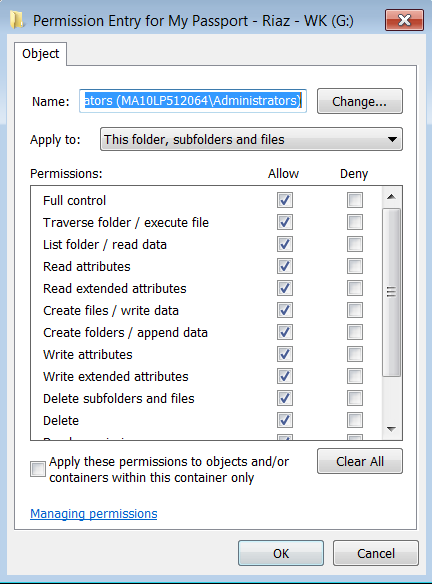
  7. To to modify permission attributes, select the user from the list and click 'Edit...' button (see screenshot-06)

Screenshots:

Screenshot-01:


Screenshot-02:


Screenshot-03:


Screenshot-04: 


Screenshot-05:


Screenshot-06:


Resources:

Wednesday, July 11, 2012

VirtualBox - Setup - RDP to windows VM

There are two options to setup Remote Desktop in Guest VM using Oracle VirtualBox. Once the RDP is setup, windows RDP client can be used to connect to the VM.

1. Option-01: Use VirtualBox RDP feature
2. Option-02: Use guest VM's RDP directly

Environment Information:
1. Operating System: Windows 2008 R2
2. Oracle VirtualBox: 4.1.16

Option-01: Use VirtualBox RDP featureSetup Correct Network Adapter:

  1. Enable 'Remote Display Server' in VM Manager
    1. Go to VirtualBox Manager
    2. Select the VM where RDP is needed
    3. Click 'Settings'
    4. From left navigation panel, click 'Display'
    5. From right pane, select 'Remote Display' tab
    6. Check 'Enable Server'
    7. Provide a port number in 'Server Port:' (remember this port which will be needed to setup Firewall later)
    8. Click 'OK'
  2. Enable RDP in host:
    1. Click 'Start', point to 'Control Panel', click 'System and Security', click 'System' and then click 'Remote Settings' or
      Click 'Start', right-click 'My Computer', click 'Properties' and then click 'Remote Settings'
    2. On 'Remote' tab, under 'Remote Desktop' section, select 'Allow connections from computers', second option. (Based on need, third option can be selected; Allow connections only from computers running Remote Desktop with network level authentication)
  3. Create a Firewall rule in host:
    1. Click 'Start' - 'Administrator Tools' - Windows Firewall with Advanced Security'
    2. Click 'Inbound Rules' from left navigation panel
    3. Click 'New Rule...'
    4. Select 'Port' - hit 'Next'
    5. Select 'TCP', specify port number which is given in Step-01.07 - hit 'Next'
    6. Select 'Allow the connection' - hit 'Next'
    7. Select 'Domain', 'Private', 'Public' based on need - hit 'Next'
    8. Provide a unique name for the rule - hit 'Finish'
  4. Install VirtualBox Guest Additions
Option-02: Use guest VM's RDP directly:
  1. Enable Remote Desktop in guest:
    1. Click 'Start', point to 'Control Panel', click 'System and Security', click 'System' and then click 'Remote Settings' or
      Click 'Start', right-click 'My Computer', click 'Properties' and then click 'Remote Settings'
    2. On 'Remote' tab, under 'Remote Desktop' section, select 'Allow connections from computers', second option. (Based on need, third option can be selected; Allow connections only from computers running Remote Desktop with network level authentication)
  2. Setup Correct Network Adapter:
    1. Go to VirtualBox Manager
    2. Select the VM where RDP is needed
    3. Click 'Settings'
    4. From left navigation panel, click 'Network'
    5. Go to appropriate adapter tab. Most of the times, a VM has only one adapter, in that case 'Adapter 1' tab has to be selected
    6. Select 'Bridged Adapter' under 'Attached to:' dropdown
    7. Select the appropriate network from 'Name:'. If host machine has multiple network adapters (Wireless, NIC card etc.), all will be displayed here.
    8. Need to make sure 'Cable Connected' checkbox is checked
    9. Press 'OK'
Note:
1. Collect host OS's IP address and the port number against that RDP/firewall is setup to connect from RDP client when using Option-01.
2. Collect guest OS's IP address to connect from RDP client when using Option-02.